MuscleOS

Workout tracker

MuscleOS

Log your workouts and track muscle recovery.

Track sets, reps, weight, and rest. Review your workout history and see which muscles are ready to train.

Basic is free. Pro starts at $2.99/month.

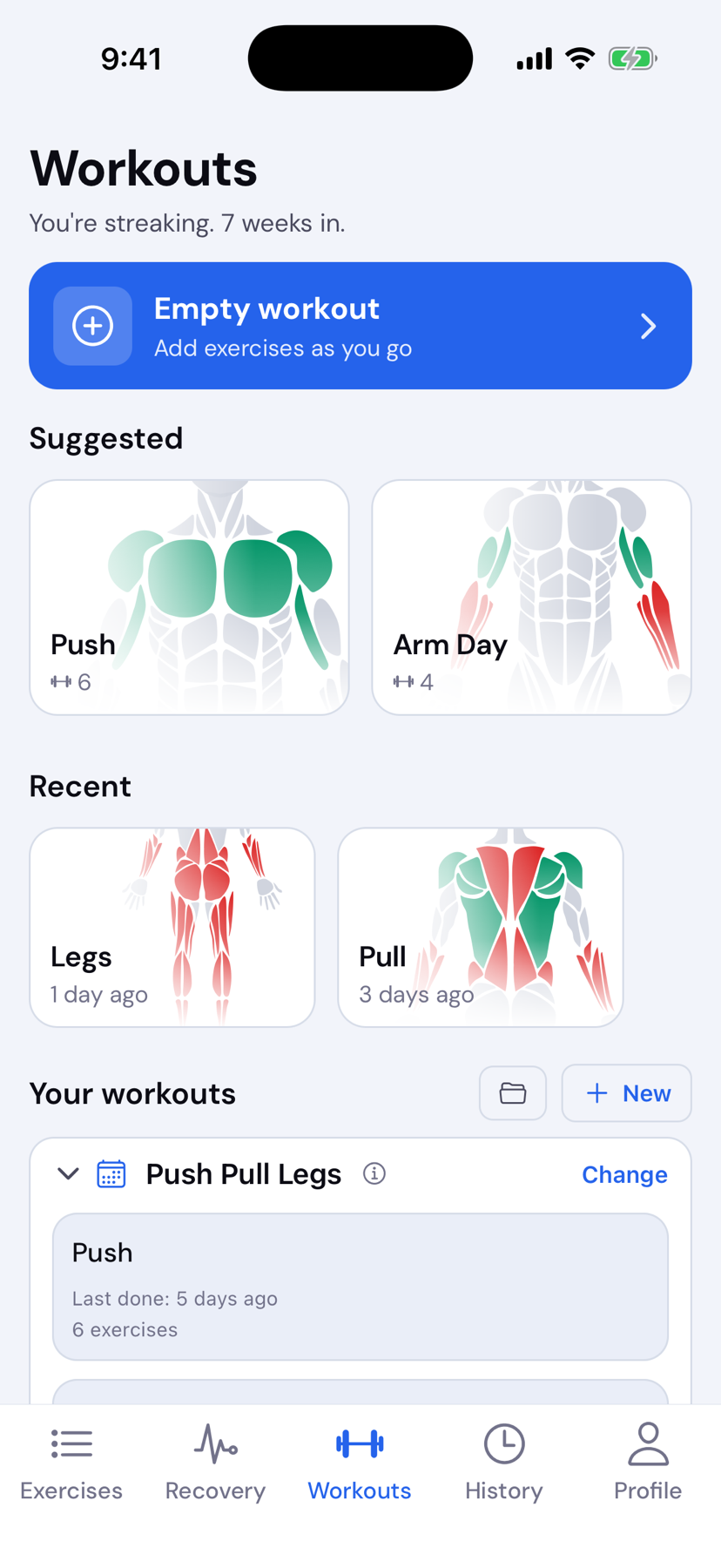
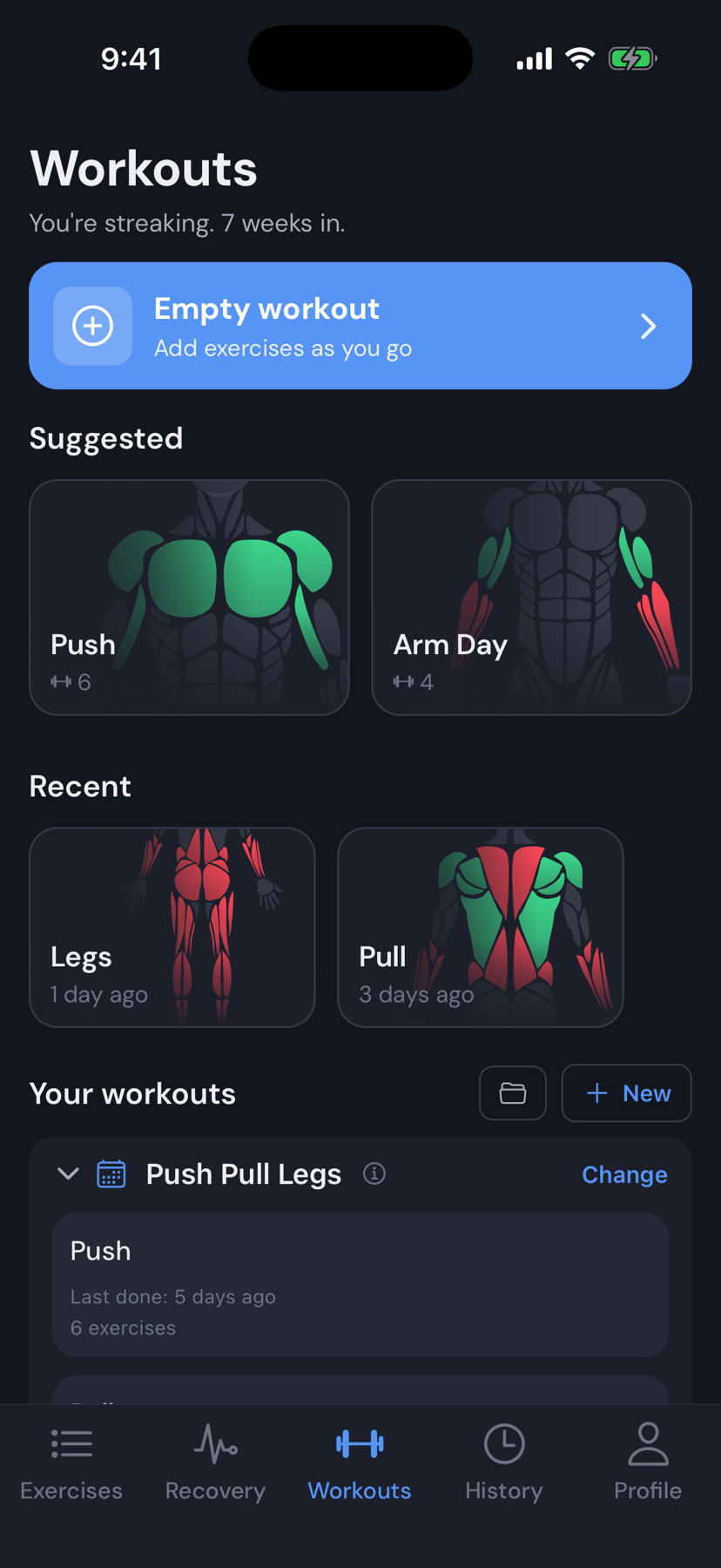
MuscleOS Workouts screen

Overview

A simple way to track your training.

  • Start quickly

    Choose a built-in template and begin logging.

  • Use your own workouts

    Create templates for your usual training days with Pro.

  • Check muscle recovery

    See which muscles are ready and which are still recovering.

Features

Workouts, recovery, exercises, and history.

The main parts of MuscleOS.

Workouts

Log your workouts

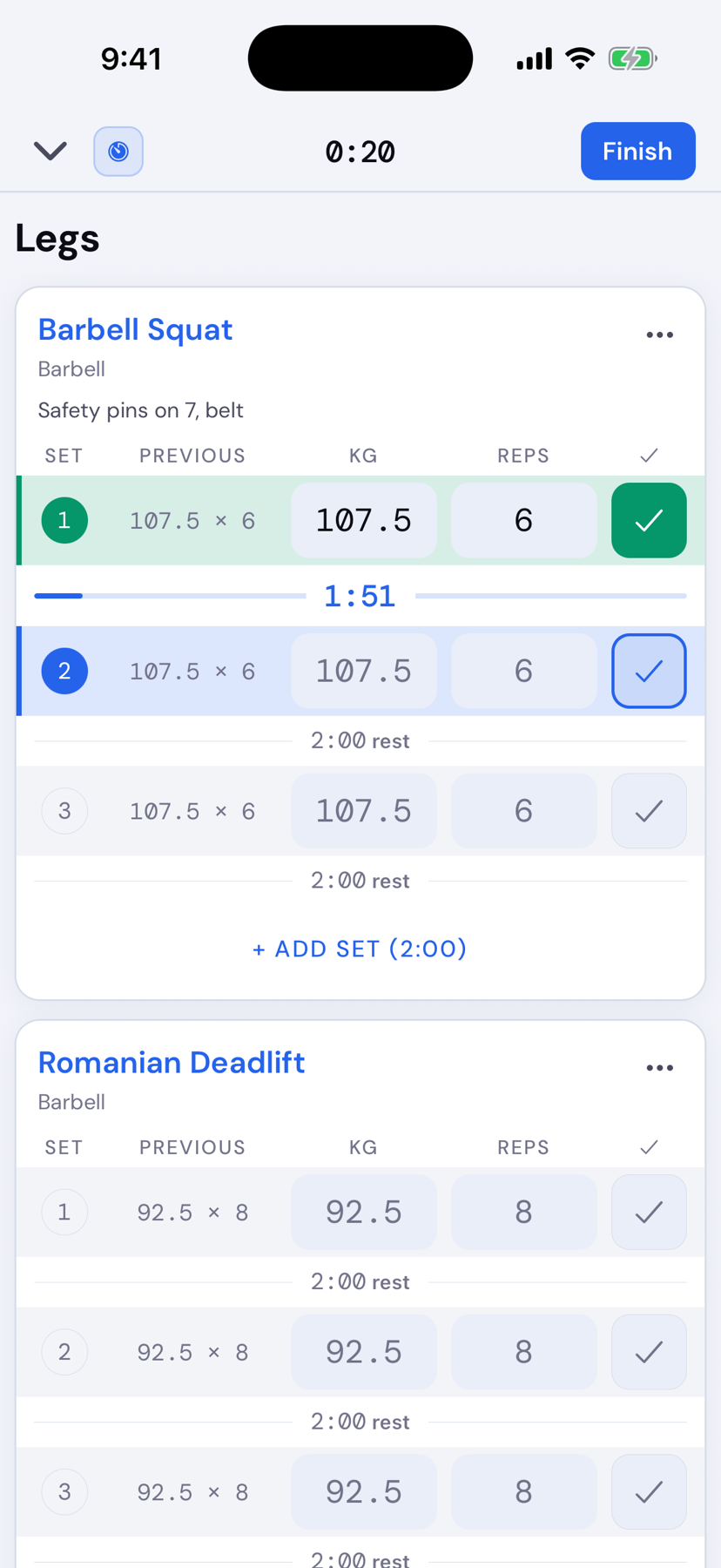
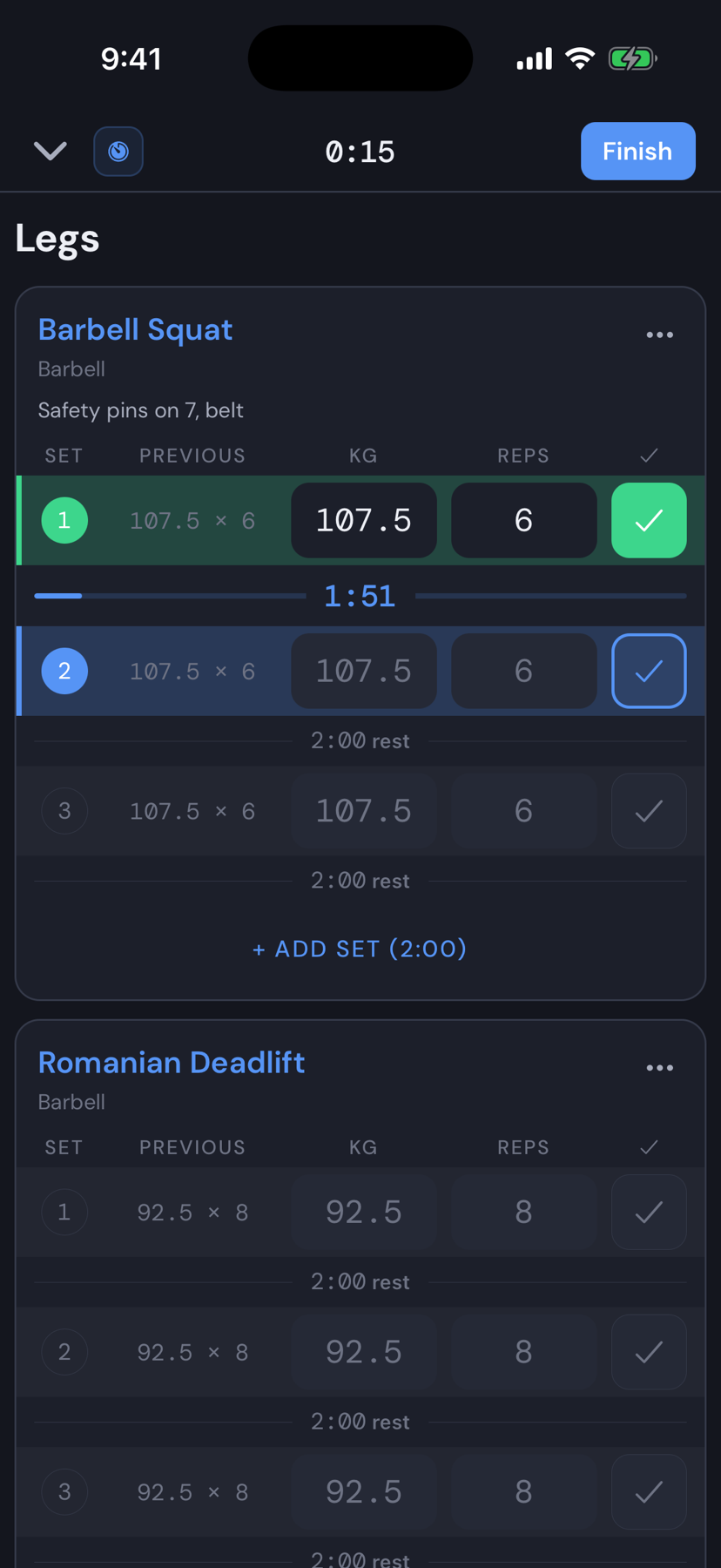
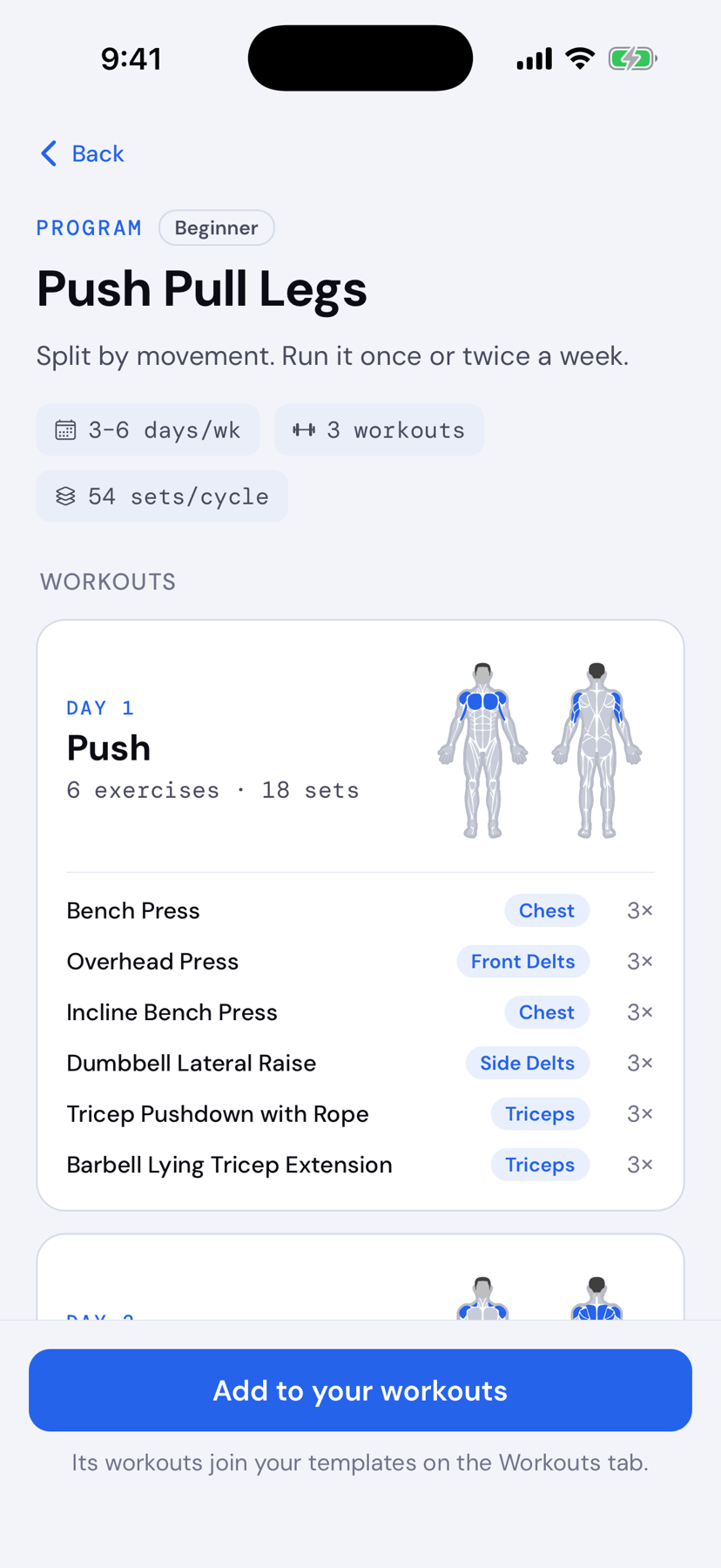
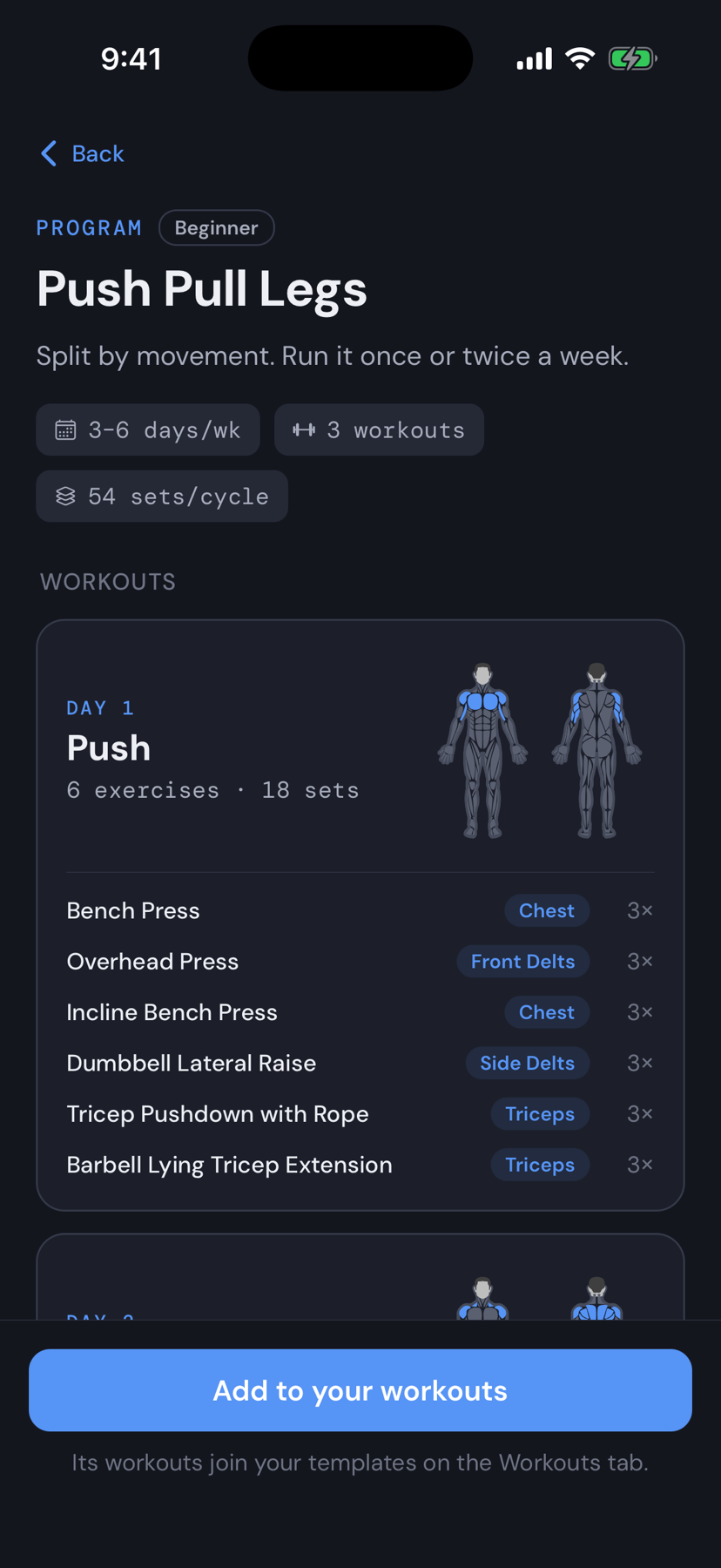
Start with a built-in Push Pull Legs or Strong Lifts 5×5 workout. Enter your weight and reps, complete each set, and use the rest timer between sets.

  • 5 built-in workouts (PPL + Strong Lifts)
  • Set logging with rest timers
  • Resume an in-progress workout
MuscleOS Workouts screen

Exercises

Find exercises

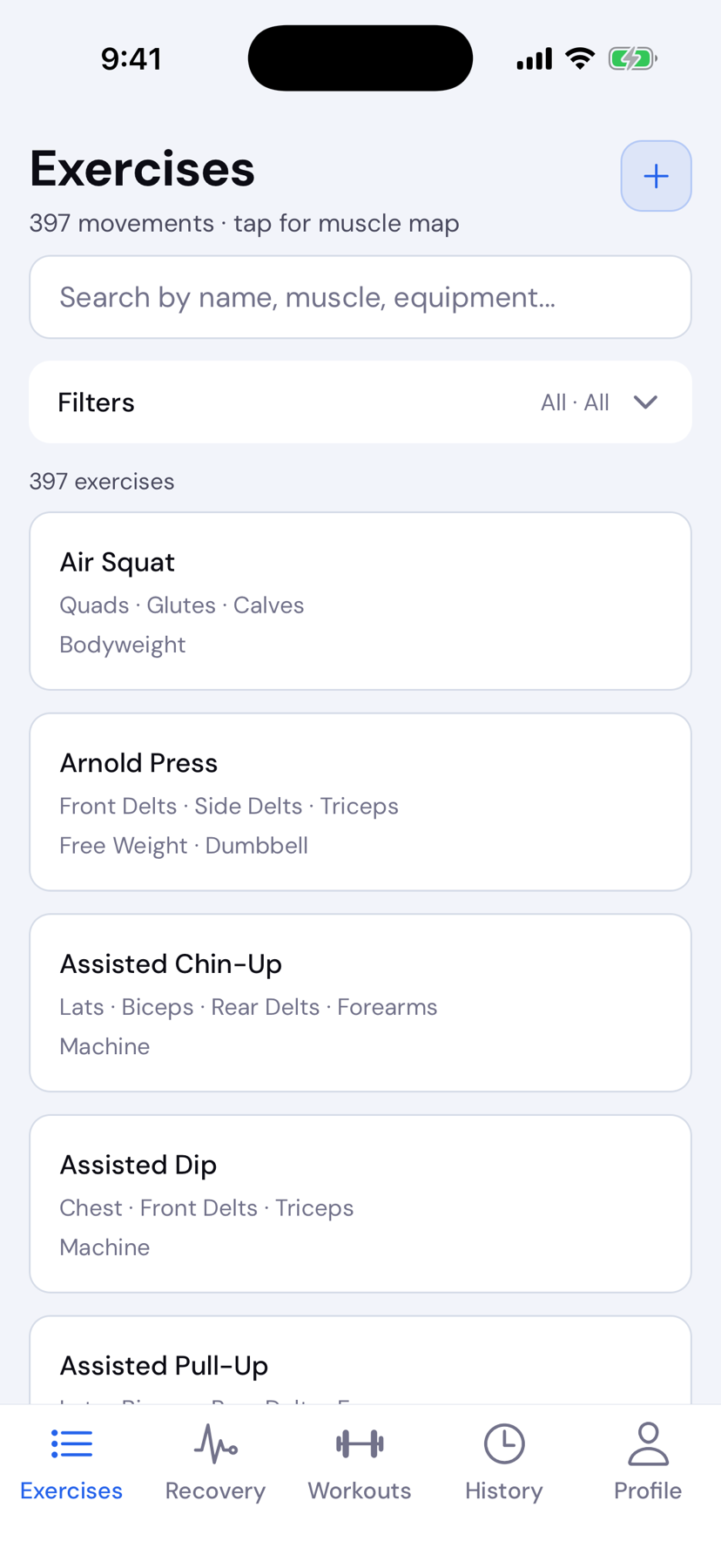
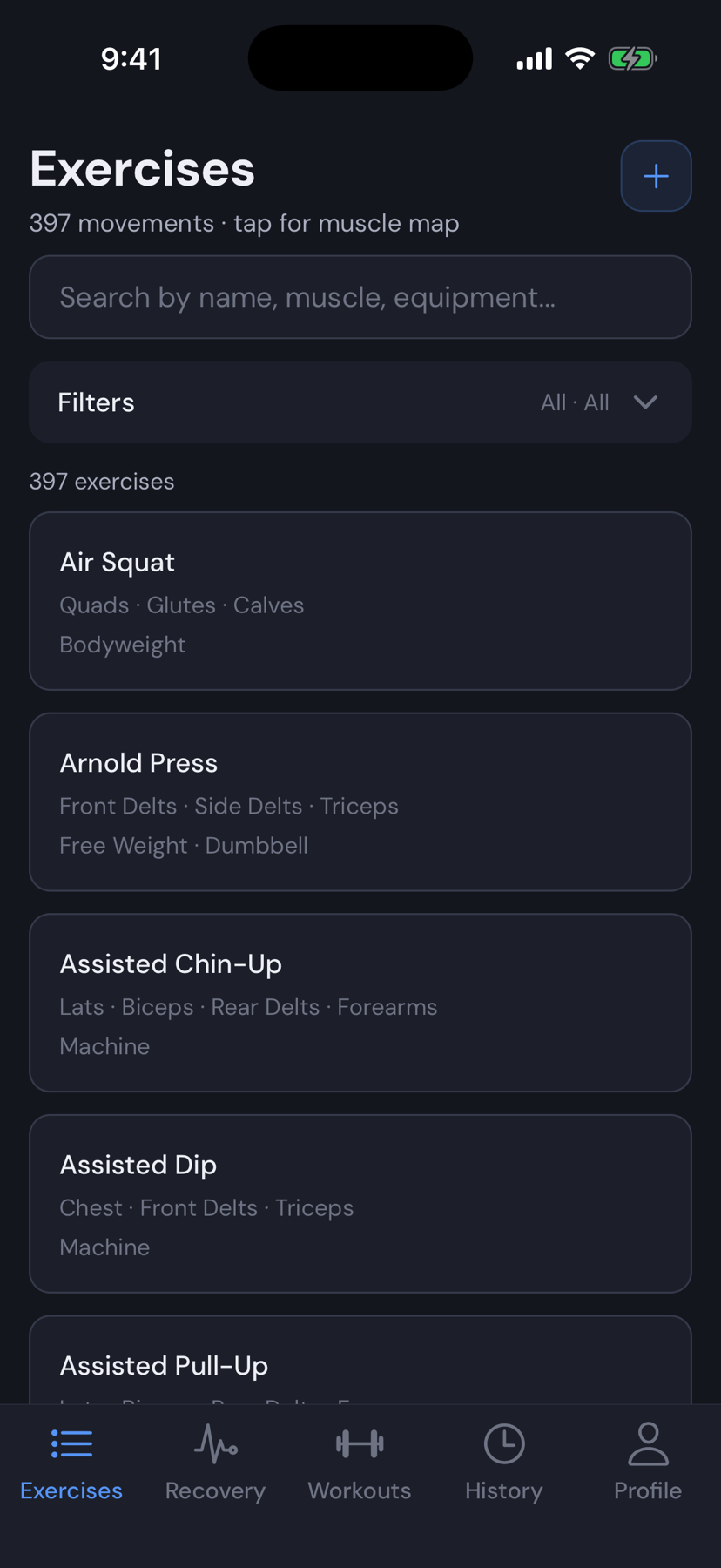
Search the exercise library by name, muscle, or equipment. Tap an exercise to see instructions and the muscles it works.

  • Search by name, muscle, or equipment
  • Muscle map on each exercise
  • Custom exercises on Pro
MuscleOS exercise library

Recovery

Check your recovery

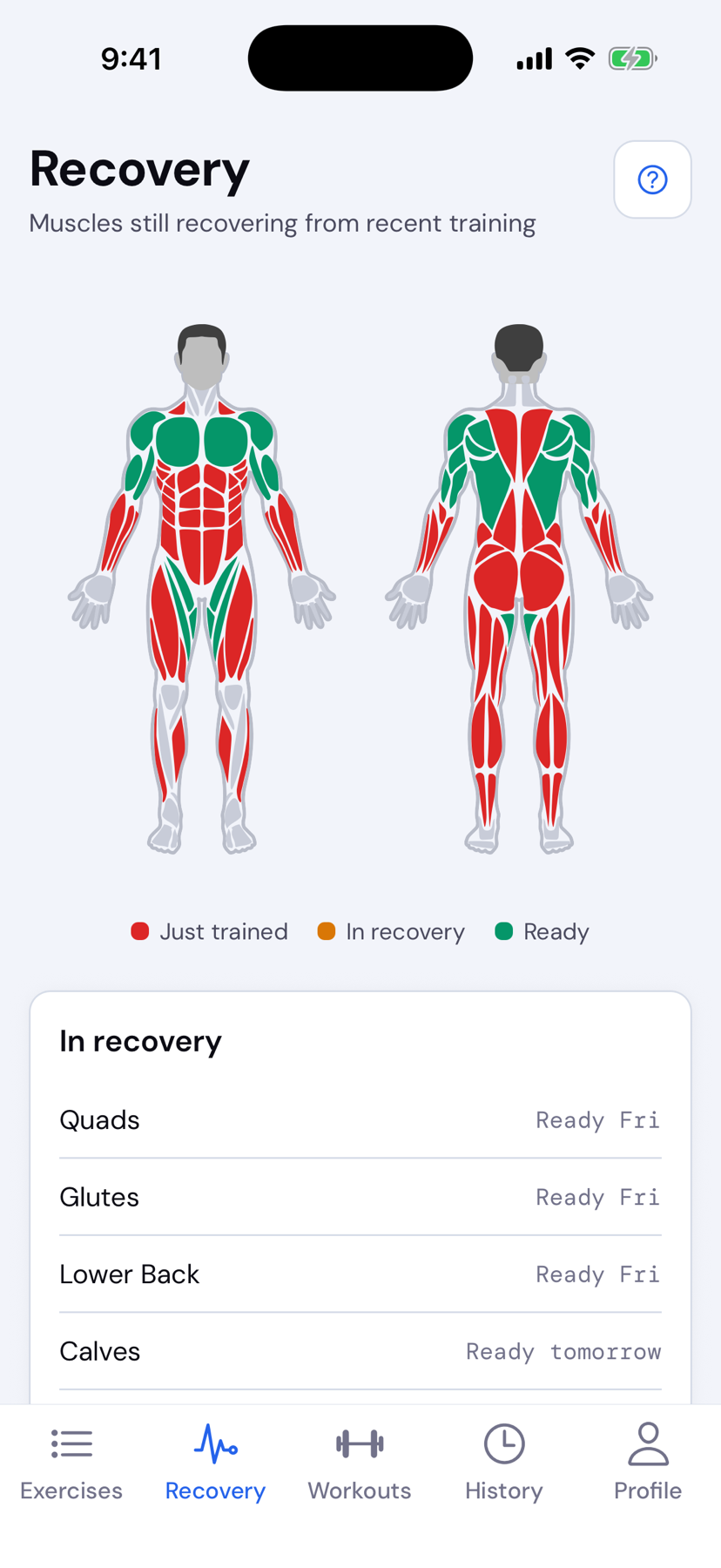
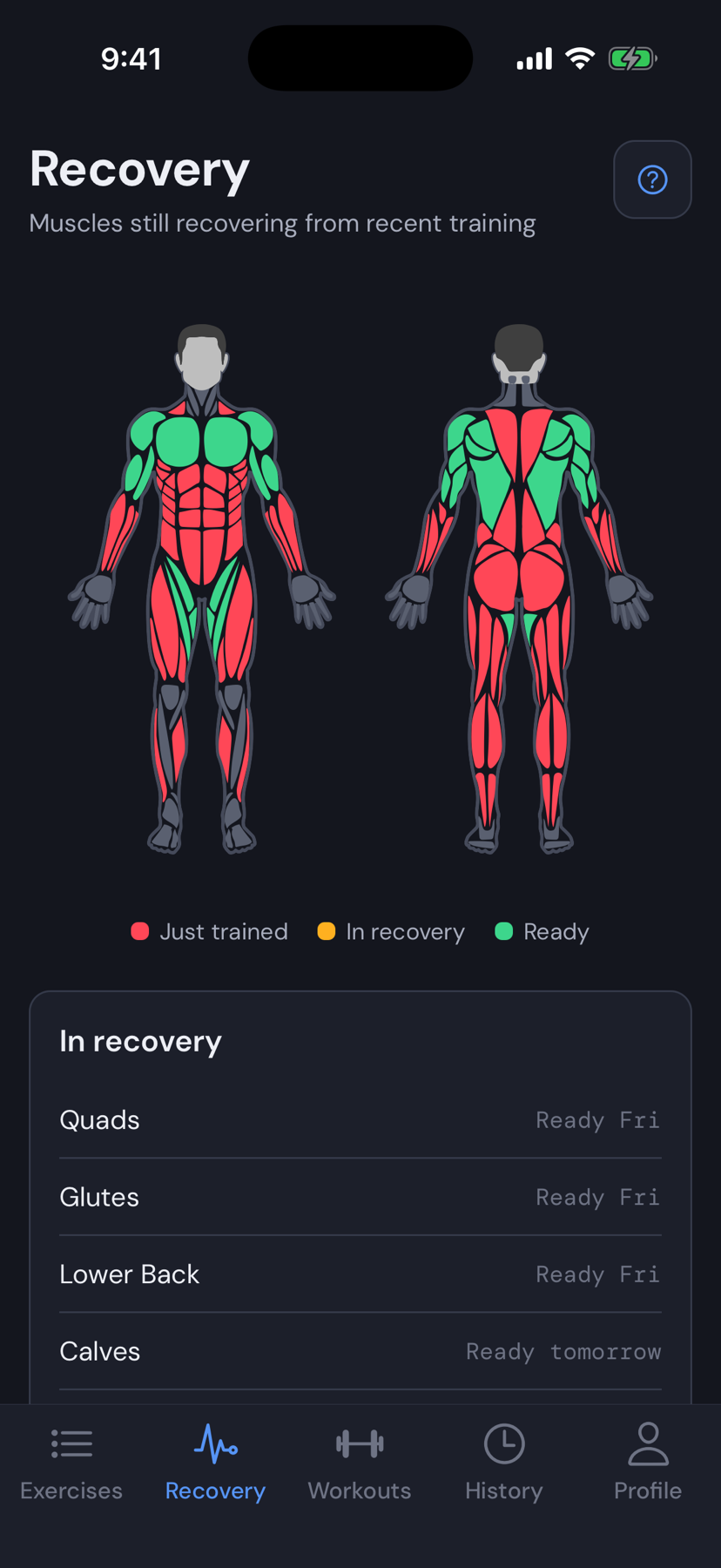
Recovery updates after each saved workout. The body map shows which muscles are ready and which are still recovering.

  • Front and back diagram
  • Updates from logged workouts
  • Included on Basic
MuscleOS Recovery screen

History

Review past workouts

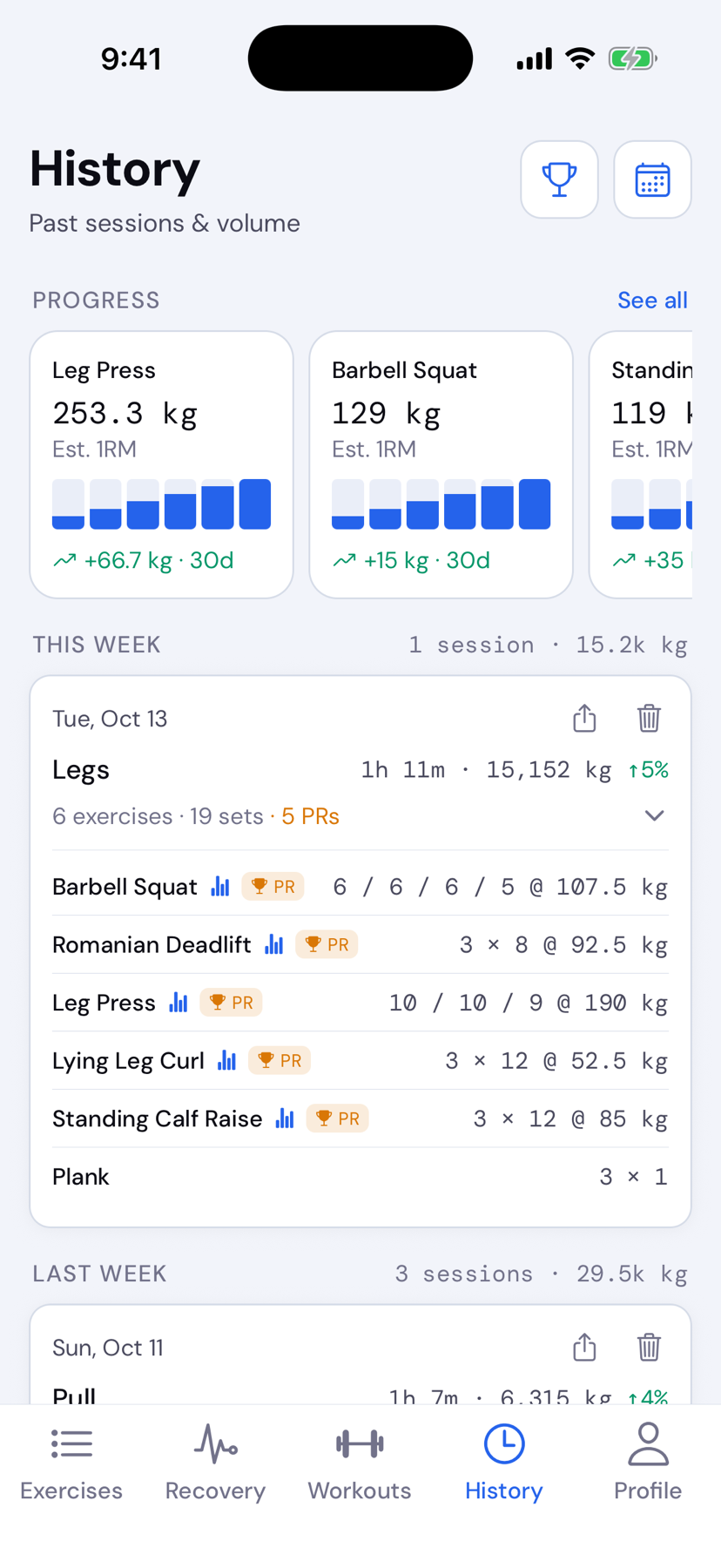
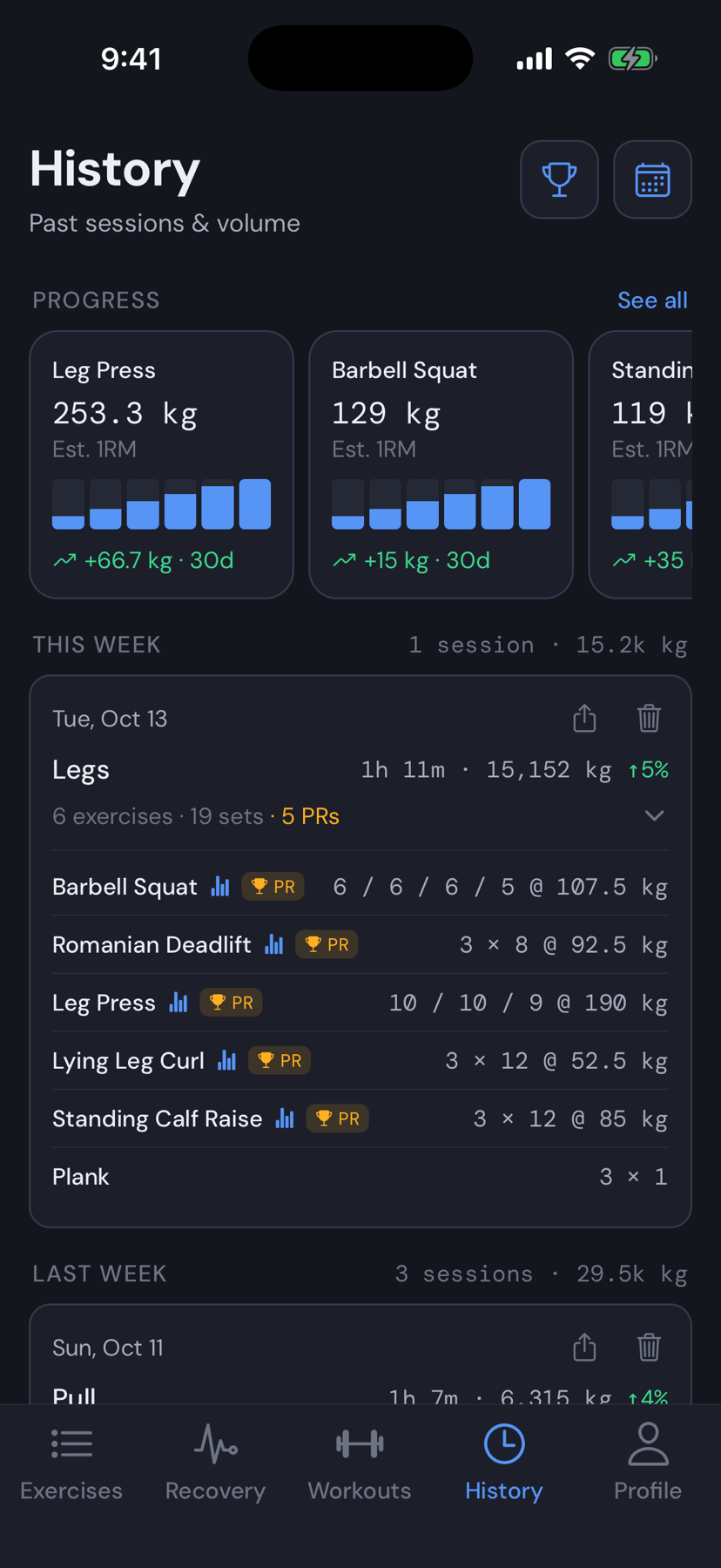
See your saved workouts, including duration, volume, exercises, and sets. Pro adds personal records, progression charts, and a monthly calendar.

  • Session list and detail
  • JSON export anytime
  • PRs, charts, and calendar on Pro
MuscleOS History screen

Small app. Low storage use.

≈32 MB

App size

1–2 MB

Typical workout data

$0

Basic plan

Pricing

Choose Basic or Pro.

Basic includes workout logging, built-in programs, Recovery, and History. Pro adds custom workouts and progress tools.

Basic

Free

No time limit

Includes:

  • 5 built-in programs (PPL & Strong Lifts)
  • Full set logging & rest timers
  • Exercise library
  • Recovery map
  • History & JSON export

Recommended

Pro

$19.99/yr

or $2.99/month

Everything in Basic, plus:

  • Custom workout templates & folders
  • Custom exercises
  • Empty workouts & mid-session edits
  • Save a finished workout as a template
  • PRs, charts, and monthly calendar

Getting started

Start your first workout.

  1. 1

    Download

    Get MuscleOS on iPhone or Android.

  2. 2

    Choose a workout

    Start a built-in template or create your own with Pro.

  3. 3

    Log your sets

    Enter your weight and reps, then save the workout.

Use Basic for free. Upgrade to Pro for custom workouts and progress tracking.

FAQ

How to use MuscleOS

Simple instructions for the main parts of the app.

  • MuscleOS Workouts tab — start empty or from a template

    Start a workout

  • MuscleOS Recovery tab — muscles you trained

    Check recovery

  • MuscleOS exercise library

    Find exercises

  • MuscleOS History tab — past sessions

    View past workouts

How do I start a workout?

Open the Workouts tab. Tap a template to start it, or tap Empty workout to add exercises as you go.

MuscleOS Workouts tab with empty workout, suggested templates, and custom Pull / Push days

How do I log sets?

Enter the weight and reps for each set, then tap the checkmark when the set is done. The rest timer starts automatically.

How do I change the exercises in a workout?

You can change the exercise list while the workout is running.

  • To add an exercise, scroll to the bottom and tap Add Exercise.
  • To replace or remove one, tap the three dots beside its name.
  • To reorder exercises, press and hold an exercise name, then drag it.

Editing the exercise list during a workout requires Pro.

How do I finish a workout?

Tap Finish in the top-right. Review the summary, then tap Save values.

If you changed the workout, you can also update the template or save it as a new template. These options require Pro.

To cancel instead, scroll to the bottom and tap Cancel workout.

How do I create a workout template?

On the Workouts tab, tap + New. Give the template a name, add exercises, and choose the number of sets.

You can also save a finished workout as a new template.

Creating templates requires Pro.

How does Recovery work?

Recovery updates after you save a workout. It shows which muscles are ready and which are still recovering.

The Workouts tab also suggests templates based on the muscles that are ready.

Recovery and workout suggestions are included with Basic.

MuscleOS Recovery tab with front and back muscle diagrams

Where can I see past workouts?

Open the History tab. Tap a workout to see its exercises, sets, duration, and total volume.

MuscleOS History tab showing past sessions with volume and sets

How do I find exercises?

Open the Exercises tab. Search by name or filter by muscle and equipment. Tap an exercise to see its instructions and muscle map.

MuscleOS exercise library with search and muscle filters

How do I hide a template?

On the Workouts tab, tap the three dots on the template and choose Hide. Use the same menu to show it again.

How do I contact support?

Email us and we will get back to you.

support@muscleos.app