FAQ
How to use MuscleOS
Simple instructions for the main parts of the app.
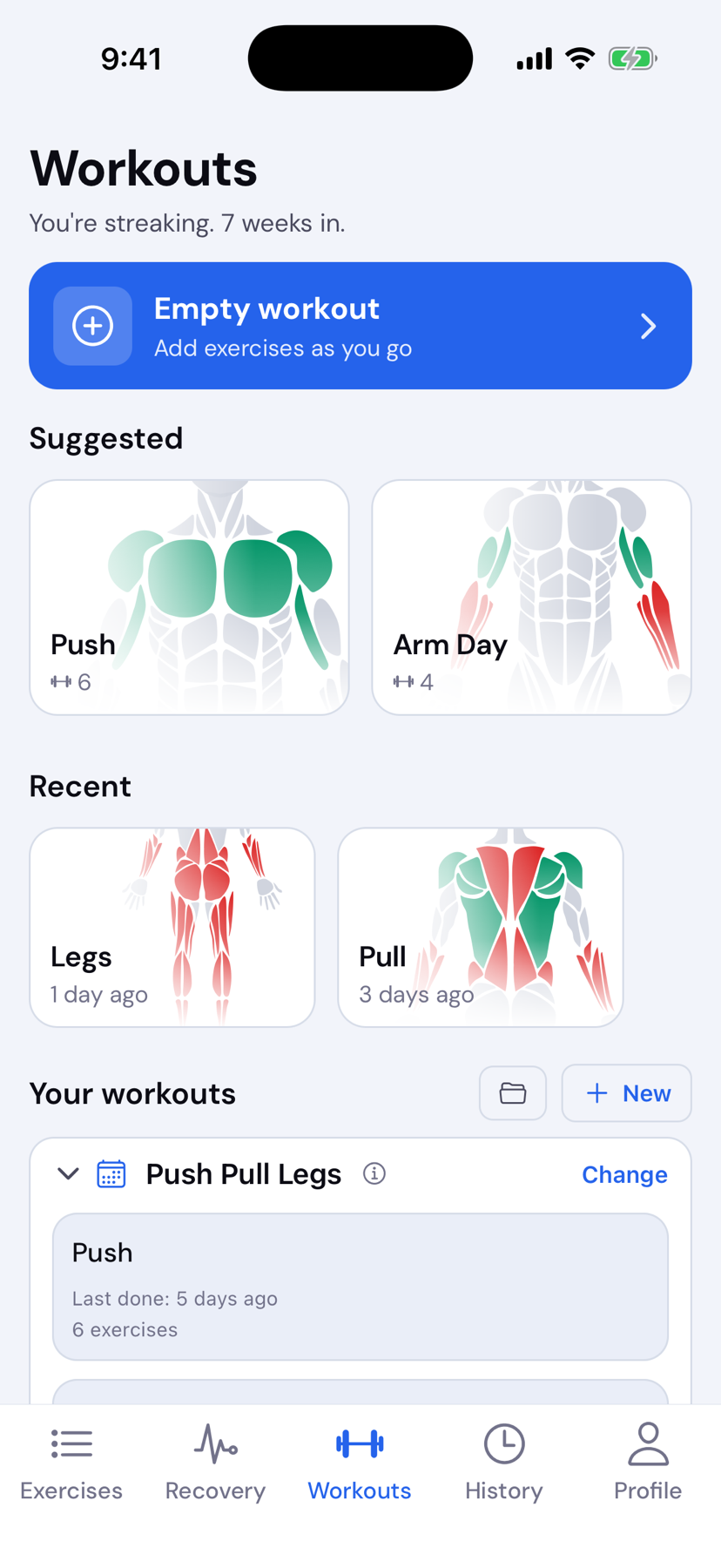
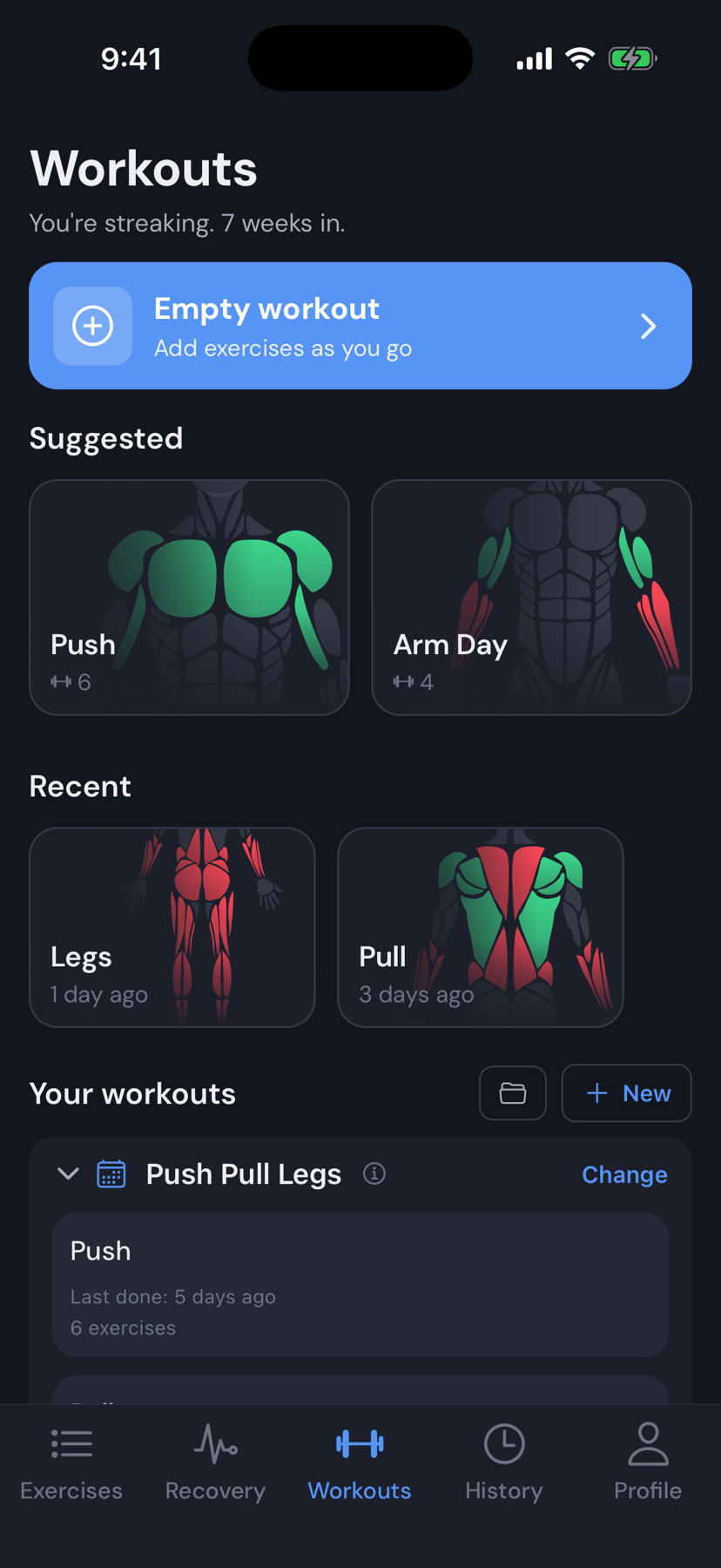
Start a workout
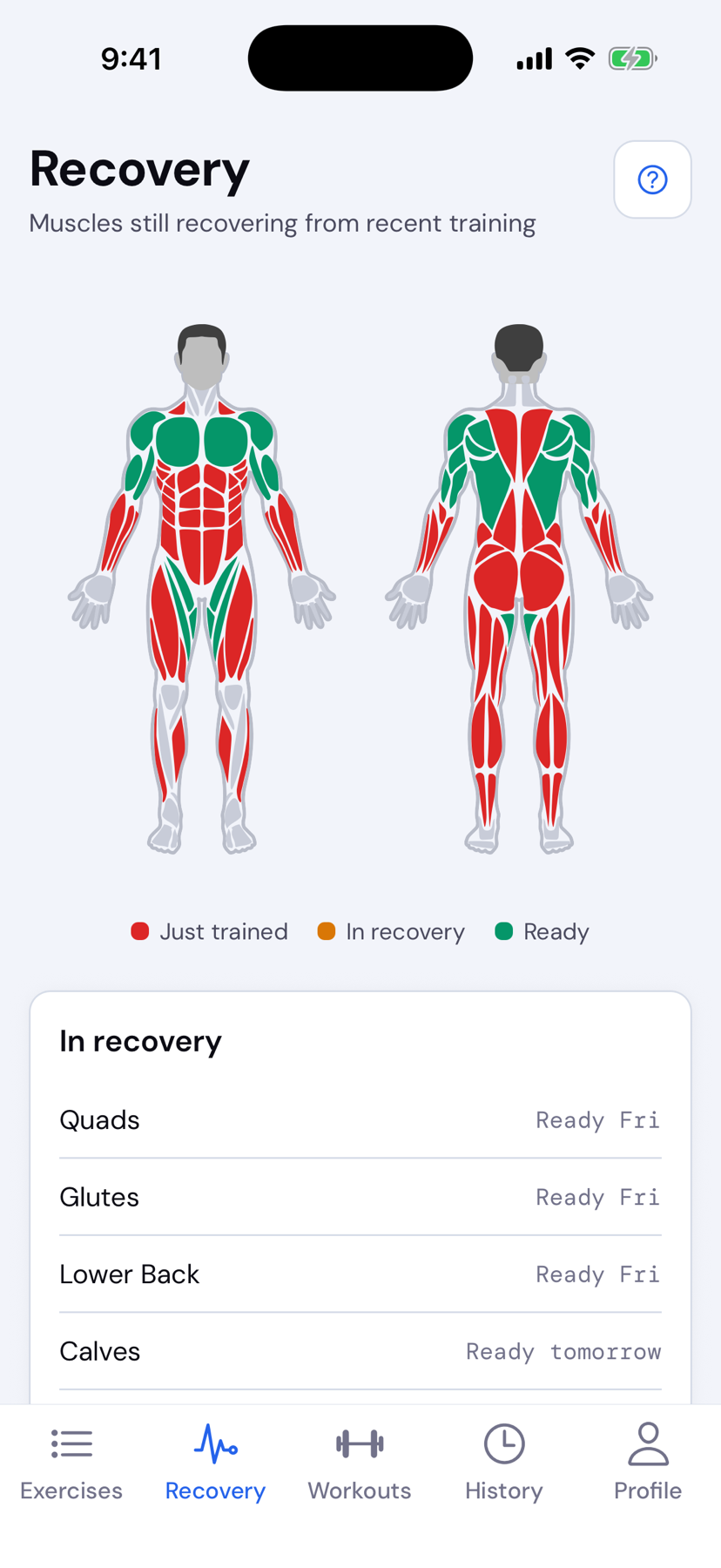
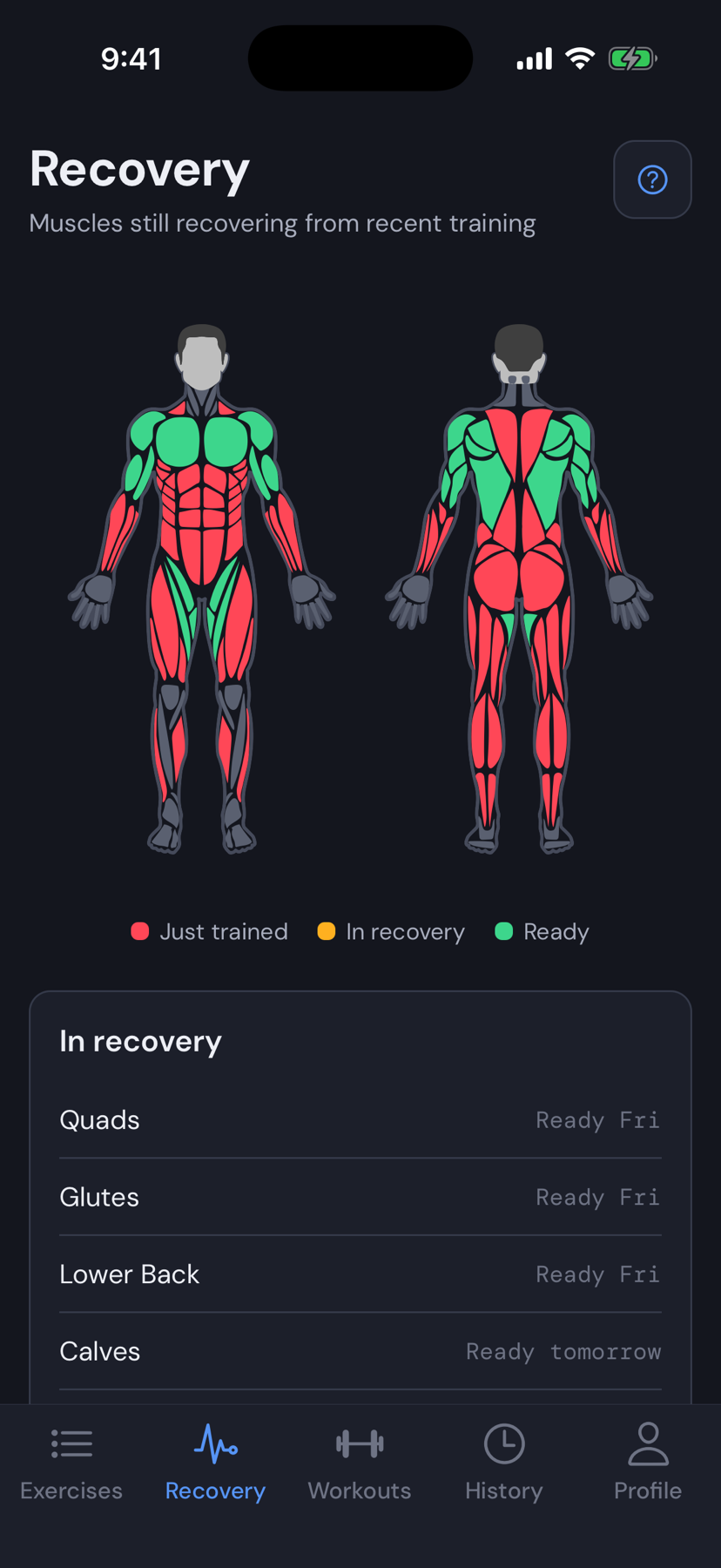
Check recovery
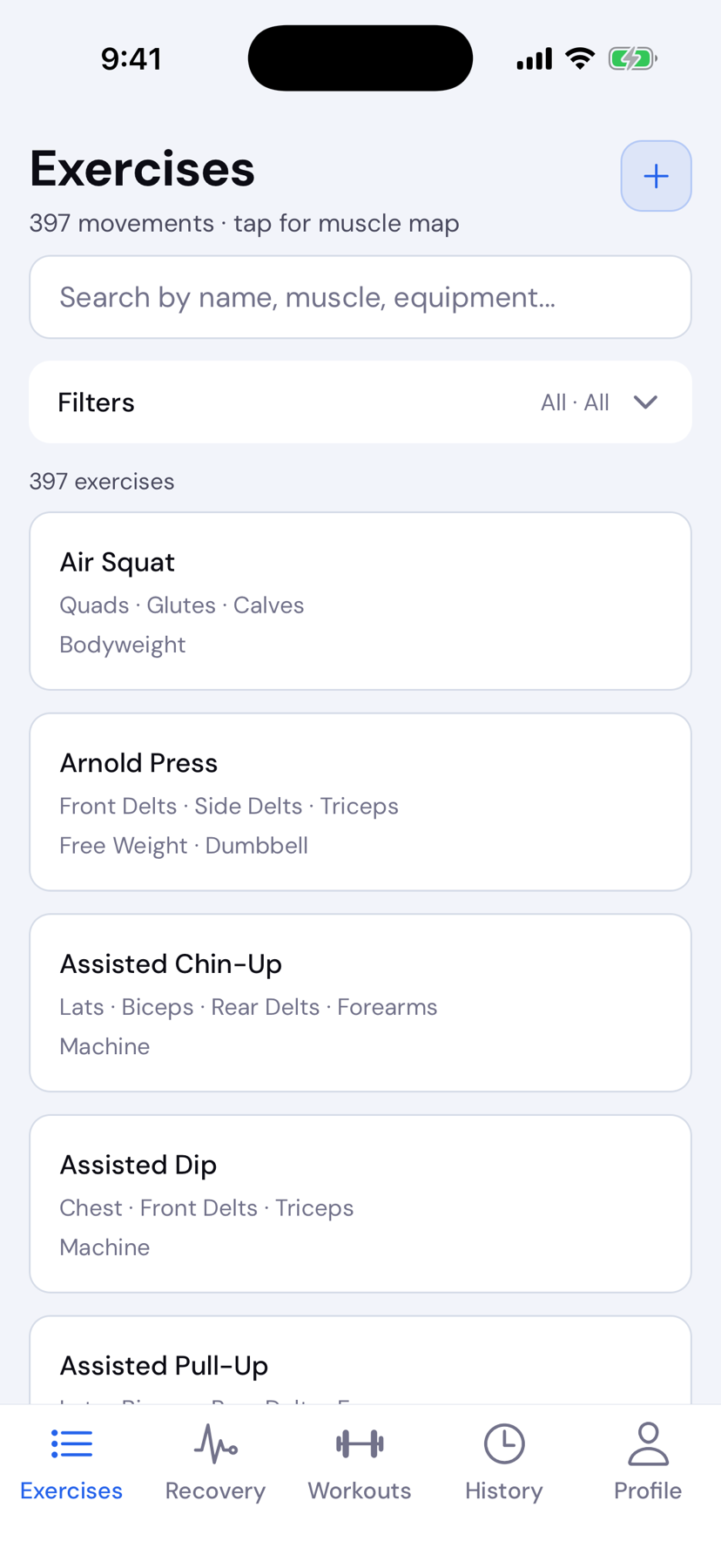
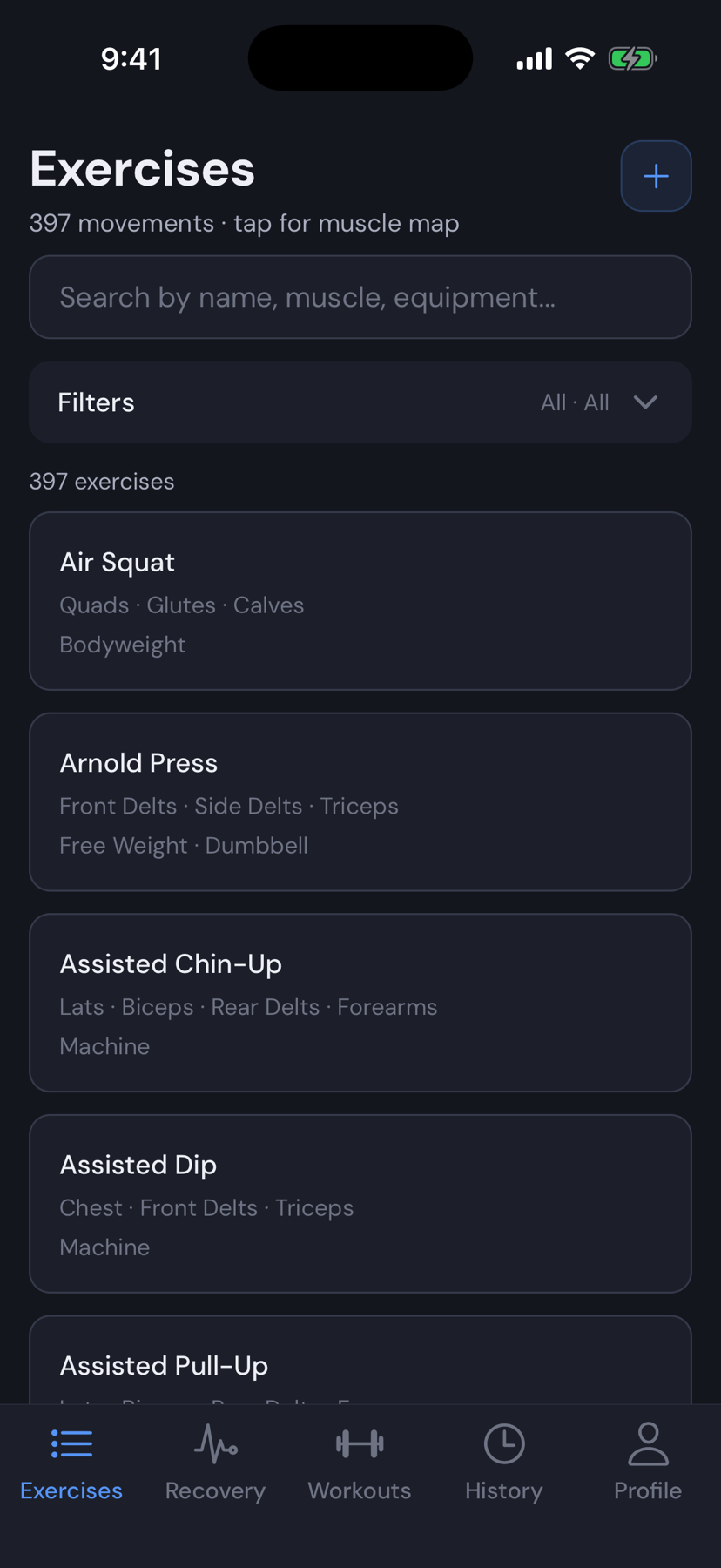
Find exercises
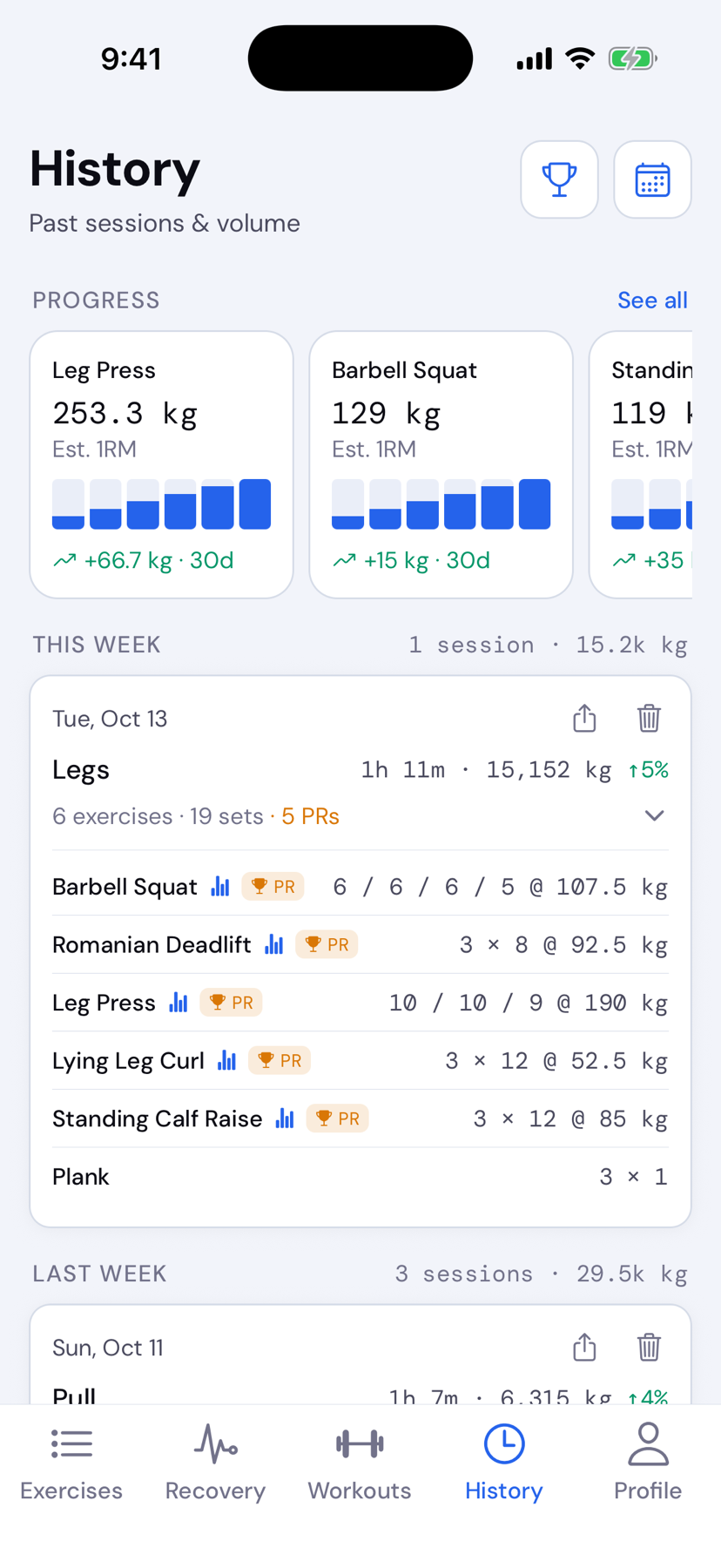
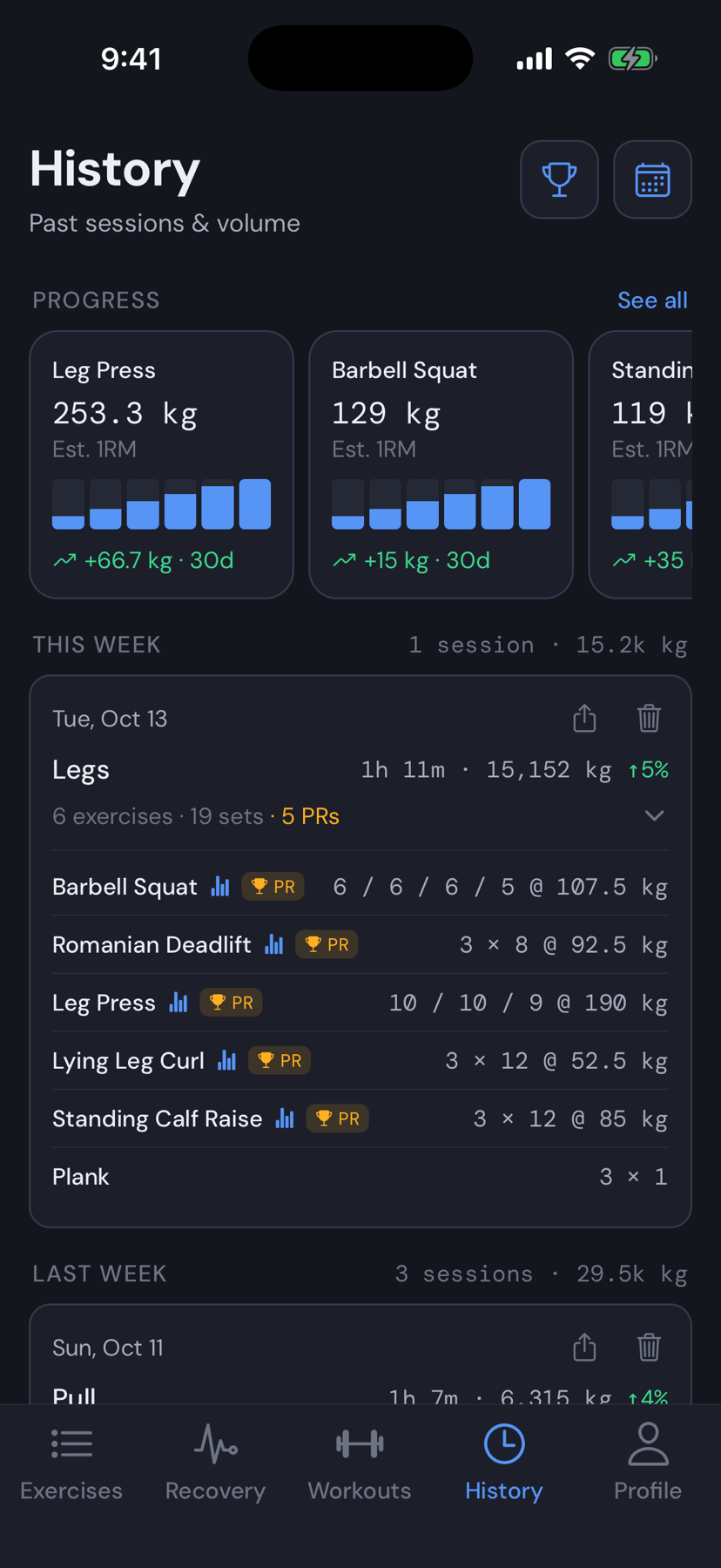
View past workouts
Is MuscleOS really free?
Yes. Every feature is free, forever: custom templates and exercises, empty workouts, personal records, progression charts, the calendar, backup and sync. There’s no paywall, no trial, no ads, and nothing to buy in the app.
What is Coaching?
Coaching is coming later and will be how MuscleOS makes money. Personal trainers will be able to send you programs to run in MuscleOS, the MuscleOS AI coach will build a program around your goals, and the app will set your next weights and reps from what you logged.
It’s optional. Logging, templates, recovery and history stay free.
How do I start a workout?
Open the Workouts tab, then:
- Tap a Suggested or Recent workout, or one under Your workouts: your own templates and the workouts of the program you follow.
- Check the exercises and what you lifted last time, then tap Start workout.
- Or tap Empty workout to start with no exercises and add them as you go.
Only one workout runs at a time. If you leave it, tap Resume workout above the tabs to get back to it.
How do programs work?
MuscleOS has four programs: Push Pull Legs, Upper/Lower, Strong Lifts 5×5, and PHUL. You follow one at a time, or none. New installs start with none.
Tap a program to see every workout, its exercises and sets, and the muscles it trains. Add to your workouts puts its workouts next to your own templates on the Workouts tab, and Suggested picks from both.
Switching or removing a program never touches your own templates or your history. Change it any time from Change beside the program’s name.
How do I log sets?
Tap the weight or reps in a set to open the number pad. Next moves from weight to reps, and Done completes the set. You can also tap the checkmark at the end of the row.
A set needs at least 1 rep. Weight is optional, for bodyweight work.
Previous shows the best set from the last time you did that exercise. Its weight and reps are filled in as a suggestion; the first digit you type replaces it.
The number pad types whole numbers. Use − and + to step the weight by 0.25 kg or 2.5 lb.
Tap + Add set for another set, or Add warm-up set in the three-dot menu. Swipe a set left to delete it.
How does the rest timer work?
Completing a working set starts a 2:00 rest. Tap the timer at the top of the screen to add or remove 30 seconds or skip it. The rest you actually took is shown under the set number.
To change the rest for an exercise, tap the three dots beside its name and choose Update rest timers. Each exercise has a work-set rest and a warm-up rest, from 0:00 to 15:00. Warm-ups don’t start a timer unless you set one.
When the rest ends you get a notification, even if the app is in the background.
Can I change the exercises during a workout?
Yes, on any workout, program workouts included:
- Reorder: press and hold an exercise name, then drag it.
- Add: tap Add Exercise at the bottom of the workout.
- Replace: tap the three dots beside an exercise and choose Replace exercise.
- Remove: tap the three dots and choose Remove exercise.
- Note: tap the three dots and choose Edit note to save a setup cue, like seat height. It shows every time you do that exercise.
Changing a program workout changes that session only. To keep your version, save it as a new template when you finish.
How do I finish or cancel a workout?
Tap Finish in the top-right once you’ve completed at least one set. Review the summary and tap Save values. Sets you didn’t complete are kept in the session but don’t count toward recovery or your stats.
If you changed the exercises or number of sets, you can also save the workout as a new template, or overwrite the custom template you started from.
To cancel, scroll to the bottom and tap Cancel workout, then Discard workout. The X on the Resume workout bar also discards the workout, without asking.
What if I forget to finish a workout?
A workout with no changes for 3 hours closes on its own the next time you open the app.
If you completed at least one set, it’s saved as ending at your last change, so your history and recovery stay accurate. If you didn’t complete any sets, it’s discarded.
How do I create a workout template?
On the Workouts tab, tap New. Name the template, add exercises, and set each one’s working sets, warm-up sets, and rest.
You can also finish a workout and save it as a new template. The folder button next to New creates a folder to group templates.
How does Recovery work?
When you finish a workout, every muscle worked by an exercise with a completed set starts a recovery timer:
- 36 hours: abs, obliques, biceps, triceps, forearms, neck, tibialis.
- 48 hours: front, side, and rear delts, calves, adductors.
- 72 hours: chest, traps, lats, rhomboids, lower back, quads, hamstrings, glutes.
On the body map, red is just trained, amber is still recovering, and green is ready. Weight, reps, and sets don’t change the timer. The Workouts tab suggests templates that use muscles that are ready.
Where can I see past workouts?
Open the History tab. Workouts are grouped by week. Each one shows its date, duration, total volume, and how the volume compares with the last time you did that workout; tap it to see every completed set. Tap the trash icon to delete one; recovery and your previous values update to match.
Workouts where you set a personal record are marked PR. The trophy button opens personal records (estimated one-rep max for each exercise, with progression charts) and the calendar button opens a monthly view.
How do I find exercises?
Open the Exercises tab. Search by name, muscle, or equipment, or open Filters to narrow by type and muscle. Tap an exercise to see the muscles it works, its instructions, and your own notes.
Can’t find one? Tap + to add your own exercise.
How do I hide a template?
On the Workouts tab, tap the three dots on one of your templates and choose Hide.
Hidden templates move to a Hidden group at the bottom of My templates. Open it and use the same menu to show them again.
Program workouts can’t be hidden one by one. To drop them, remove the program or switch to another.
Can I use kilograms?
Yes. MuscleOS starts in pounds; switch in Profile → Settings → Units. Exercise weight and body weight each have their own setting, so you can lift in kilograms and weigh yourself in pounds.
Do I need an account?
No. Everything works on your phone without signing in, including offline.
Sign in with Apple, Google, or email to back up your workouts and use them on another device. Apple, Google, and email sign-ins with the same address are the same account.
How do I move my workouts to a new phone?
Sign in on the new phone with the same Apple, Google, or email account. Your workouts, templates, custom exercises, notes, and settings sync down automatically.
Without an account, use Profile → Account → Data → Export my data on the old phone, then Import data on the new one.
How do I export or delete my data?
Everything is under Profile → Account:
- Export: Data → Export my data saves a JSON file of your workouts, templates, and exercises.
- Import: Data → Import data adds the workouts and templates from an export file. Nothing already on the phone is changed.
- Clear this phone: Data → Clear all data.
- Delete your account: Delete account removes it and your backup, then clears this phone.
How do I contact support?
Email us and we will get back to you.