Start a workout
- On the Workouts tab, tap a workout under Your workouts or a Suggested card.
- The preview lists each exercise with its sets, rest and what you lifted last time. Tap an exercise to see how to do it.
- Tap Start workout.
Empty workout starts with no exercises; add them with Add Exercise as you go.
Only one workout runs at a time. Tap the chevron at the top left to go back to the tabs without ending it, and Resume workout above the tab bar to return. The X on that bar discards the workout without asking.
Log a set
Each set is a row: SET, PREVIOUS, weight, REPS and a check. The set to do next is highlighted in blue. Completed sets turn green, and an exercise with every set done gets a green check by its name.
- Tap the weight. The number pad opens and the weight is selected, so the first digit you type replaces it.
- Tap Next to move to reps.
- Type the reps and tap Done. The set is complete and its rest timer starts.
You can also tap the check at the end of a row. A set needs at least 1 rep; weight is optional, for bodyweight work. Tap the check of a completed set to undo it.
Holds such as planks, side planks, hollow holds, L-sits and bar hangs have TIME in place of REPS. Do the hold, then tap the time, type how long you held it (45 for 0:45, 130 for 1:30) and tap Done. Weight is optional here too: leave it empty for bodyweight, or type the plate on your back. Pull-ups, dips and push-ups stay weight and reps, so a weighted pull-up is just a weight.
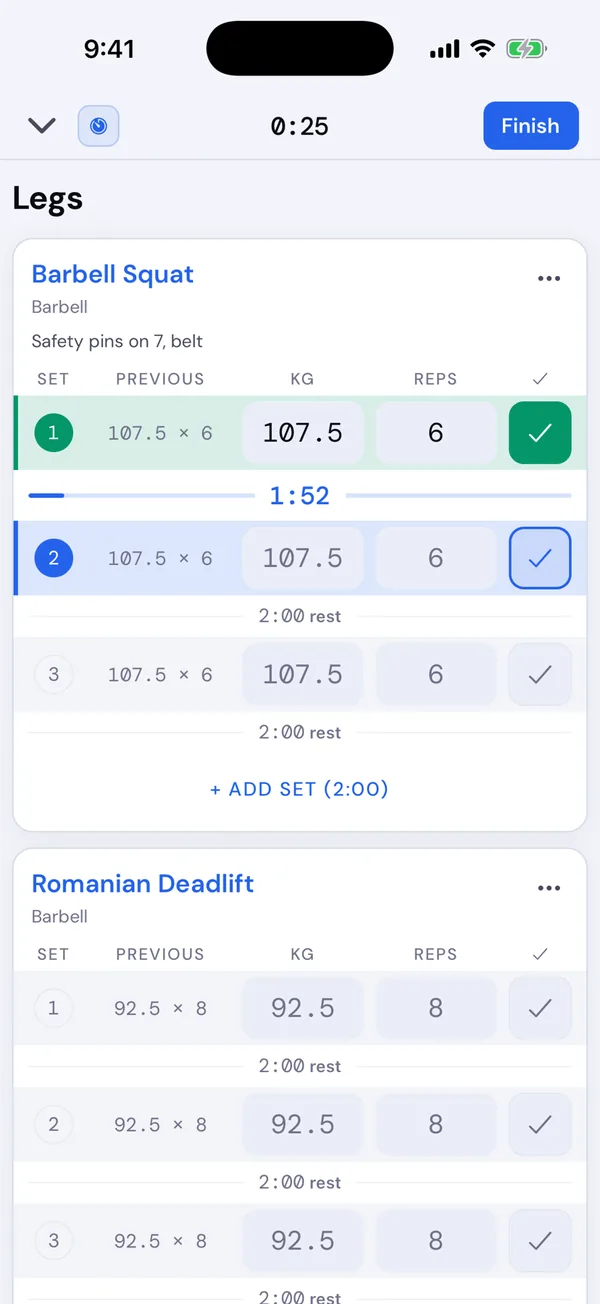
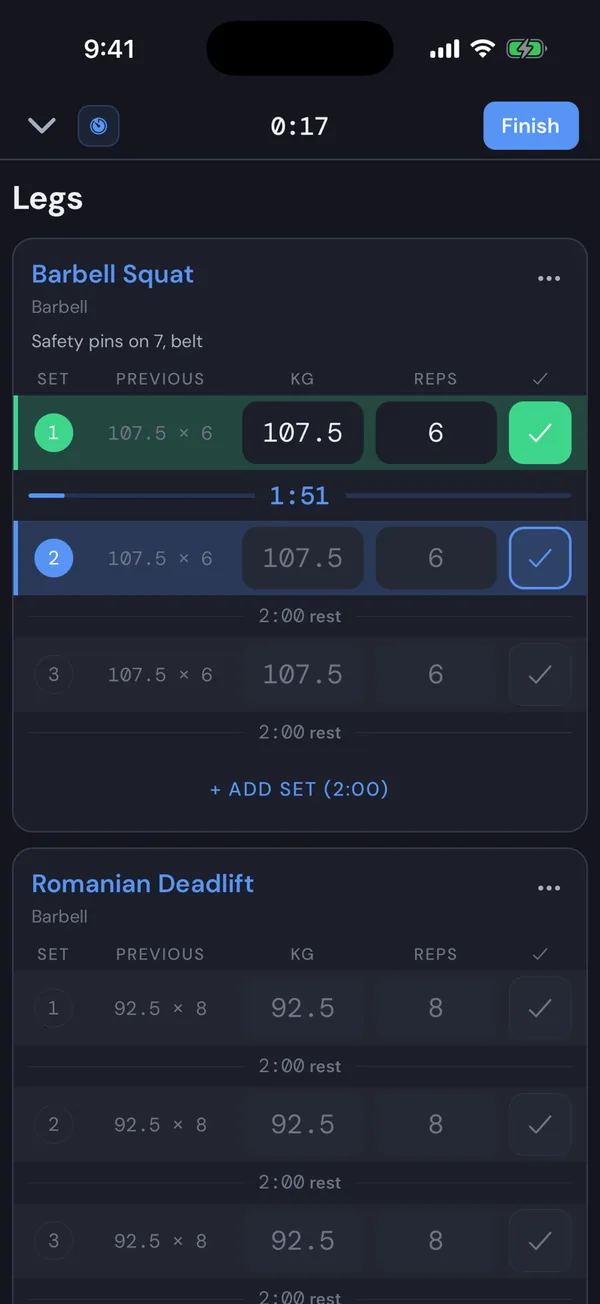
The number pad
- It types whole numbers. Use − and + to step the weight by 0.25 kg or 2.5 lb, and reps by 1.
- Backspace straight after tapping a cell clears it.
- The bar above the pad names the exercise and the field you are typing in.
- On a barbell lift the pad has a plates key. See Plate calculator.
- The chevron key hides the pad.
Previous and suggested values
PREVIOUS shows your heaviest set from the last workout with that exercise, like 135 × 8, or for a hold your longest, like 0:45 or 10 × 0:45. It is the same on every row, and it is not an all-time best.
When a workout starts, empty working sets are filled with that weight and those reps in grey. They are suggestions: the first digit you type replaces them. Warm-ups are left empty.
Complete a set heavier than the suggestion and the later sets of that exercise move up to match. A weight you typed yourself is never changed.
Add, delete and warm-up sets
- + ADD SET adds a set with the last set’s weight and reps (or time).
- To add a warm-up, tap ⋯ beside the exercise name and choose Add warm-up set. Warm-ups are numbered W1, W2 and come first.
- Swipe a set to the left to delete it. Or press and hold its set number, and confirm.
- Every exercise keeps at least one set.
Finish a workout
Finish at the top right works once you have completed at least one set. It shows a summary of what you did. What you can save depends on where the workout came from:
| You started from | Your options |
|---|---|
| A template, unchanged | Save values or Discard workout |
| A template you changed (exercises, sets, rests or supersets) | Save values only, Overwrite this template, Save as new template or Discard workout |
| An empty workout | Save as template, Save values only or Discard workout |
Then a Good work screen shows the time, exercises and sets, and the muscles you trained. Tap a lift to see its progress chart, Share to send the workout as an image, or Done.
Cancel a workout
Scroll to the bottom of the workout and tap Cancel workout, then Discard workout. Nothing is saved.
If you forget to finish
A workout with no changes for 3 hours closes on its own the next time you open the app. If you completed a set, it is saved as ending at your last change and History marks it Closed after 3 h idle. If you didn’t, it is discarded.